Tracing guides
Arabic letter and number tracing in Numbers & Letters
Follow Arabic letter strokes and dots, choose Eastern Arabic digits, and use recorded Arabic voices in the Numbers & Letters Android tracing app.
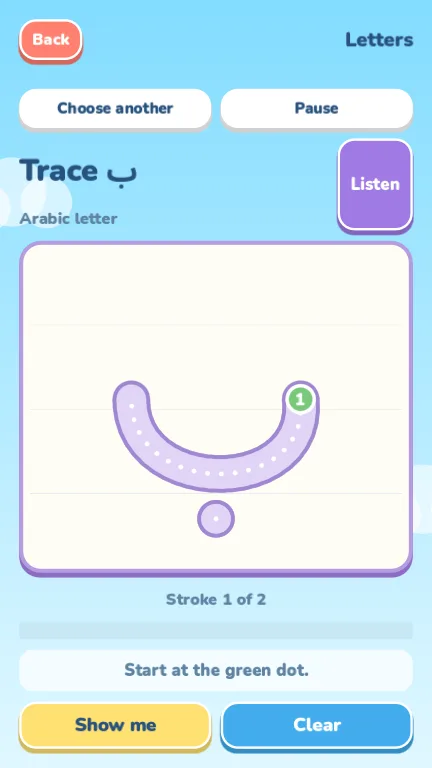
Looking for an Arabic tracing activity? Start by checking which forms the app actually includes. Numbers & Letters offers 28 isolated Arabic letters, recorded character names and a choice of digit styles. Its menus remain in English, including when Arabic voices are selected.
This walkthrough focuses on selecting the Arabic options, following the stroke guide and handling letter dots. Follow the screenshots to practice isolated letters and choose the digits you want to trace.
Start with the parent settings
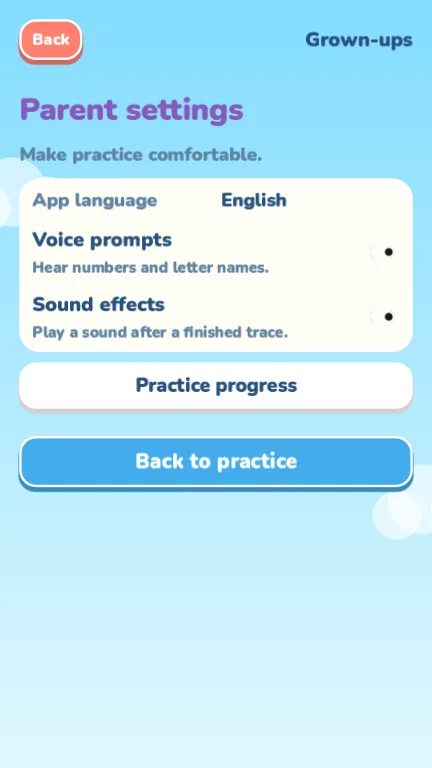
The parent area opens after a two-second hold. Use it to choose Arabic voices and the digit style you want to practice. Spoken encouragement and sound effects have their own settings, so you can adjust the feedback before opening a tracing screen.
The home screen still uses the English labels Numbers and Letters. An English menu does not mean the voice selection failed: written menus stay in English in every language mode. Check the character itself and use Listen to hear its recorded name.
Follow the guide for one isolated letter
Choose Letters and pick an Arabic character. Find the numbered green start dot, press it and follow the dotted path for the current stroke. When that stroke ends, lift your finger before beginning the next one.
Follow the order shown on the screen instead of trying to draw the entire character in a single movement. The app checks the ordered strokes and records completion only after all of them have been followed. A trace that looks close can still be unfinished if a stroke or dot is missing.
If you are unsure how the motion should look, play Show me, then trace the character yourself. The demonstration is a reference: watching it does not count as a finished trace.
Treat the letter dots as separate taps
Where a letter has dots, the current app handles them as separate taps. After drawing a stroke, lift your finger and look for the next marker. Dragging from the letter's body to a dot is different from the separate action the guide asks for.
If a character will not complete, check the current marker before repeatedly drawing over the same line. A remaining dot or a later stroke may be the missing step. Use Clear to restart the trace when you want a clean attempt; there is no timer or penalty for trying again.
- Begin at the numbered green dot.
- Finish the current stroke before lifting your finger.
- Tap separate letter dots when the guide asks for them.
- Check that every indicated part is complete.
Choose between ٠–٩ and 0–9
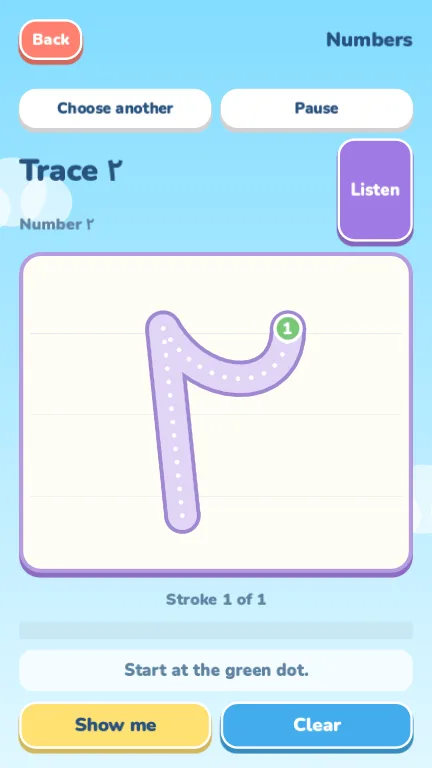
The parent settings offer Eastern Arabic digits, ٠–٩, or the 0–9 forms. Select the set you want, then choose Numbers on the home screen. The tracing interaction stays familiar: start dot, guide path and ordered strokes where needed.
Voice language and the visible digit form answer different questions. The voice determines the recorded name you hear; the chosen digit set determines the shape on the screen. Check both settings when you want a particular combination.
Know what this activity covers
The Arabic letter set contains isolated forms. It does not trace joined letter forms, connected words or sentences. If you are looking for word-writing practice, those activities are outside the current app's scope.
Listen plays human-recorded names bundled with the app, without needing a connection for the recordings. The local practice screen records app activity rather than assessing handwriting or language proficiency.
For a first session, choose one character, listen to its name, watch the demonstration if needed and complete a trace. Return to the picker when you want another character. The general tracing guide explains the Latin alphabet options and the same controls in more detail.