Tracing guides
Letter and number tracing in Numbers & Letters
Explore letter and number tracing with ordered strokes, start dots and human voices in English, French and Arabic in the Numbers & Letters Android app.
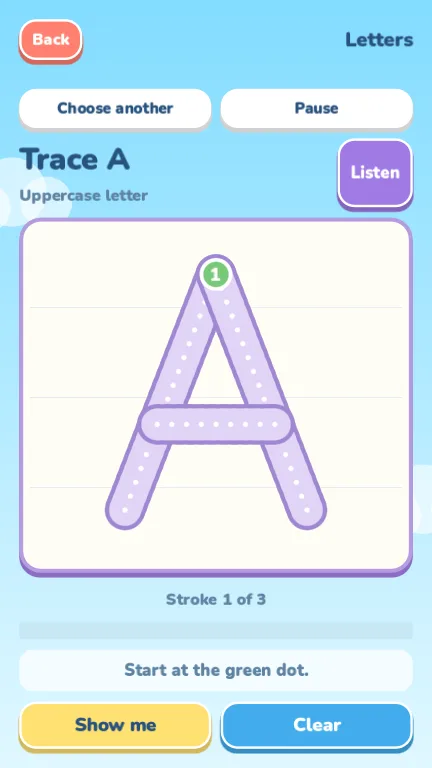
A tracing screen can look simple while still leaving a few questions: where does the finger start, when should it lift, and what happens if it leaves the line? Numbers & Letters answers these with start dots, ordered strokes and a demonstration you can replay.
Here is how Numbers & Letters works, including the difference between its voice languages and its tracing alphabets. Follow the examples to choose a character, practice its strokes and hear its name.
Choose a number or a letter
The home screen has two choices: Numbers and Letters. Numbers covers 0–9. The Latin letter picker includes uppercase A–Z and lowercase a–z, giving you 62 Latin characters when the numbers are included.
Choose one character to open its tracing screen. There is no timer and no penalty for starting again. You can return to the picker and choose another character without treating the whole alphabet as one task.
Start at the green dot and lift between strokes
Press the numbered green start dot and drag along the dotted guide. Each character has its own stroke order. When a stroke is finished, lift your finger and look for the start of the next one.
For example, the capital A shown in the screenshots has three strokes. Completing only its outline is not enough: the app checks the sequence and counts the character after all its strokes have been followed in order.
Off-path hints help you see when to return to the guide. If the screen becomes confusing, use Clear and begin the character again. Starting over does not cost a life or trigger a countdown.
- Find the green dot before touching the path.
- Follow the dots for the current stroke.
- Lift your finger before starting the next stroke.
- Complete every stroke to record a finished trace.
Use Listen and Show me for different questions
Listen plays the recorded name of the character. Show me demonstrates the tracing motion. One answers what the character is called; the other shows how its strokes move across the screen.
Watching the demonstration does not earn practice progress. After it finishes, the character still needs to be traced. That keeps the progress screen tied to completed traces rather than the number of demonstrations played.
Character names use human recordings bundled with the app. Those recordings can play without a connection, so a child can listen again while following the stroke guide.
Know what English, French and Arabic modes include
The parent settings offer English, French and Arabic voices. Written menus remain in English in every mode. French voice selection does not add accented-letter tracing: the Latin tracing set uses the basic alphabet.
Arabic mode includes 28 isolated letters and a choice of Eastern Arabic digits, ٠–٩, or 0–9. Letter dots are handled as separate taps where needed. The app does not teach joined Arabic forms or trace complete Arabic words.
These distinctions help when choosing a character to practice. Hearing a French name, tracing a Latin letter and learning a joined Arabic word are different activities; the current app covers the first two and isolated Arabic characters.
Check settings and practice progress together
Parent settings sit behind a two-second hold. They control the language, spoken encouragement and sound effects. Set these before opening a character so the voice and feedback match the activity you intended.
The practice screen records traced characters locally on the device. Treat it as a record of app activity, not a test of independent handwriting or language ability. The app offers a tracing activity; it does not make a promise about learning outcomes.
Use the game page to explore the tracing screens and supported characters. The privacy policy explains local practice records and other data practices for parents who want more detail.