Creative play
Color Garden guide: colors, zoom and saved pictures
Learn how to choose colors, fill small regions, undo changes and save artwork in Color Garden, including the difference between autosave and My Gallery.
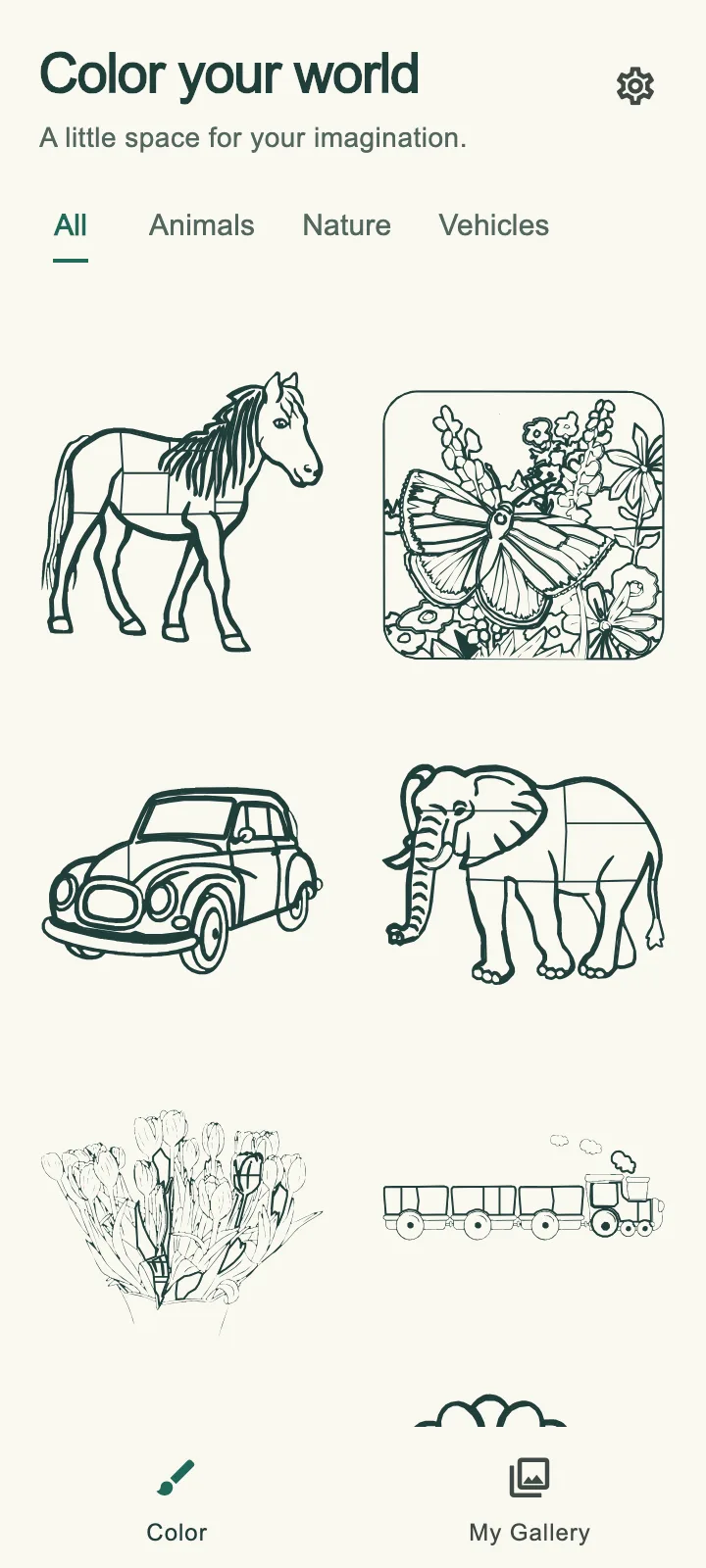
Color Garden lets you repaint a picture as often as you like. There is no required palette and no progress bar telling you which regions still need color. Its tools are there to help you make choices, change them and return to a picture later.
This guide walks through the coloring and saving features, from the first tap to My Gallery. Choose a picture, try your own palette and keep a version to return to later. The library image above is a preview render, not a phone capture.
Pick a drawing from the picture library
Browse All, Animals, Nature or Vehicles and choose a picture. The current collection includes 12 drawings, with subjects such as a horse, lion, fish, butterfly garden, steam train and sailing ship.
Each drawing already has enclosed regions. Tapping one fills that part of the picture; it does not draw a new line or brush stroke. If you want to create entirely new shapes, a blank-canvas drawing app is a different kind of tool.
Choose a color, then tap a region
Select a preset swatch along the bottom, or use the custom picker for another color. Tap an enclosed region to fill it. You do not need to find a matching number or unlock the region before painting it.
To change an area, select another color and tap that same area again. For example, try coloring a horse's body in one shade and its mane in another. Then change only the mane and compare the result. The promotional illustrations are examples of choices, not answers to copy.
Work on any part of the picture you like. Leaving the background or a few details as line art is allowed, and the app does not require every region to be filled before you save a picture.
Zoom in before tapping a small detail
Pinch to zoom and drag the drawing to bring a small region into view. A narrow part of a flower or a vehicle can be easier to reach when it occupies more of the screen. The zoom changes your view, while the same tap-to-fill control still applies.
Use Fit when you want to see the whole drawing again. This is useful after several close-up changes: a color that looks right in a detail can read differently beside the rest of the picture.
- Zoom toward the detail you want to fill.
- Move the picture so the region is easy to reach.
- Choose a swatch and tap the region.
- Use Fit to check the whole composition.
Use undo for a change and reset for a fresh canvas
Undo takes back a change, and redo lets you restore it. Color Garden describes unlimited undo and redo, so these controls are a useful way to compare recent choices without clearing the picture.
Reset is the larger action: it clears the current canvas after confirmation. Settings and clearing pictures are behind a parent gate. If only one region needs a different color, repaint it or use undo before choosing a reset.
You do not need to reset a whole drawing to use a different palette. Change a few large regions first, check the result with Fit and keep the parts you still like.
Understand autosave and My Gallery
Automatic saving remembers your colors, selected paint and zoom position as you work. My Gallery is the place for a saved snapshot: tap the check when you want to keep the picture there and revisit it later.
A snapshot does not require a completely colored drawing. If you like the picture with only its main subject filled, save it that way. There is no completion target that you must satisfy first.
Pictures are kept on the device, and no account is required. The current site does not promise cloud synchronization, image export or recovery after app data is removed. My Gallery should not be treated as a separate backup service.
The game page shows examples of line art beside colored versions. If you are choosing between this activity and following a numbered color key, the comparison guide explains the difference.