Creative play
Free coloring vs. color by number: how Color Garden works
Compare free coloring with color by number, then see how Color Garden uses any-color fills, undo, zoom and saved pictures without completion targets.
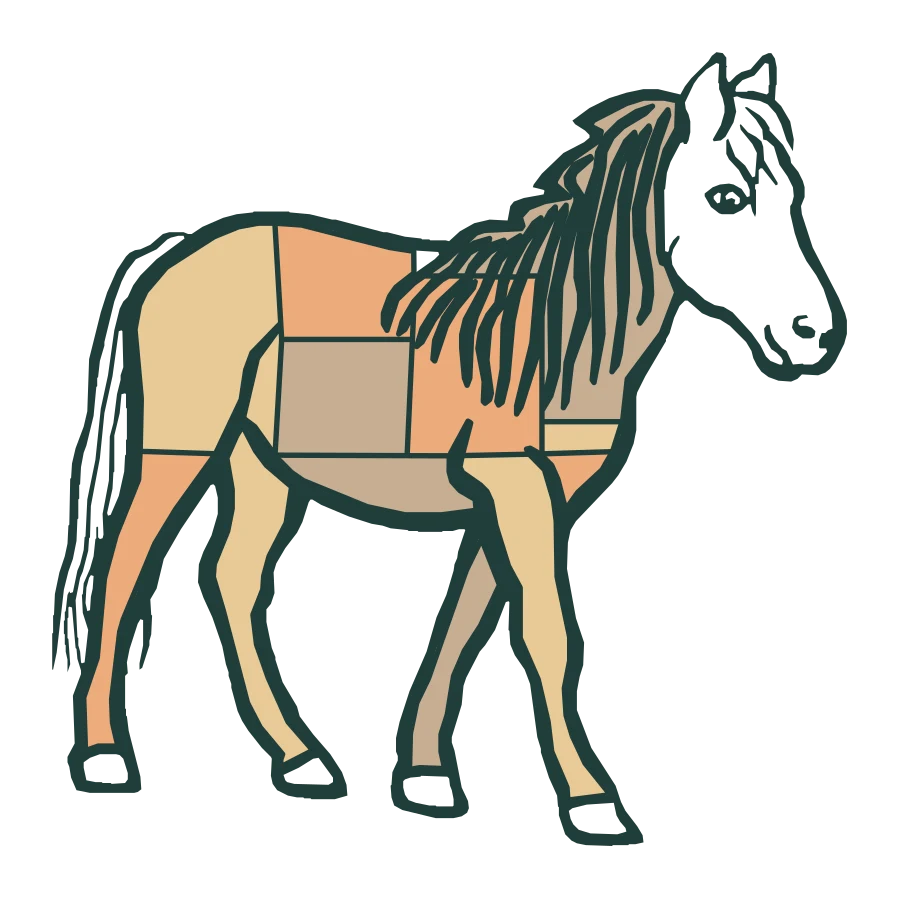
Coloring apps can offer quite different activities. Some give every region a number and ask you to match a prescribed color. Others let you choose the color of every part of the picture. Color Garden uses the second approach.
This guide explains that choice and walks through Color Garden's coloring tools for ages 3–8. Choose a picture and explore how a different palette changes its look. The artwork shown here is promotional illustration, not a phone capture.
Matching a key or choosing your own colors
In a color-by-number activity, numbers connect regions to a color key. The task is to follow those assignments. In free coloring, the person coloring makes those decisions: a horse can be blue, a flower can have several shades and the background can stay empty.
Neither format has to suit every moment. A matching task offers a defined sequence to follow. An open palette offers choices without a reference answer. The useful question is whether you want to follow a pattern or invent one today.
In this guide, free coloring means freedom to choose the colors. A blue horse, a striped balloon or a partly colored flower can all be finished pictures if that is what the child wants to make.
Color Garden uses tap-to-fill regions
Choose a drawing from All, Animals, Nature or Vehicles, select a swatch and tap an enclosed area. That area fills immediately. Tap it again with another selected color to repaint it; there is no numbered key to satisfy first.
This is a region-filling coloring book rather than a freehand drawing canvas. You choose colors within the picture's existing outlines. The distinction matters if you are looking for an app where a child can draw entirely new shapes.
The current collection contains 12 bundled pictures. Subjects include a horse, lion, fish, butterfly garden, steam train and sailing ship. Preset swatches provide a starting palette, and a custom picker lets you choose other colors.
Try a small color experiment
Pick one picture and choose three colors you like together. Fill a large region with the first, a smaller region with the second and a detail with the third. Then change just one region and compare the result.
For a different version, keep the same picture and switch the palette: warm colors for one pass, cool colors for another. The point is to make a choice and see it on the picture, without needing to copy the promotional examples.
- Give an animal an unexpected color.
- Use one color in several separate regions.
- Leave part of the drawing as line art.
- Repaint one area to change the mood of the picture.
Use zoom and undo when details get fiddly
Pinch to zoom and drag the picture to bring a small region closer. Use Fit to return to the whole drawing. Enlarging a detail changes how you reach it, without changing which colors you can use there.
Undo and redo let you revisit color choices, and a confirmed reset clears the current canvas. Try undo for a single change before resetting a whole picture. You do not have to restart just because one region looks different from what you intended.
A picture is finished when you say so
Color Garden has no completion target, required color match or hint system. A partly colored picture is valid artwork. Tap the check when you want to save a snapshot in My Gallery, and return to it for more coloring later.
Colors, selected paint and zoom position are also saved automatically as you work. Saved pictures stay on the device, and no account is required. Settings and clearing pictures sit behind a parent gate; sound is off by default.
The game page shows the picture library preview and examples of line art beside colored versions. Explore its tools there, or read the privacy policy for details about saved artwork and data practices.